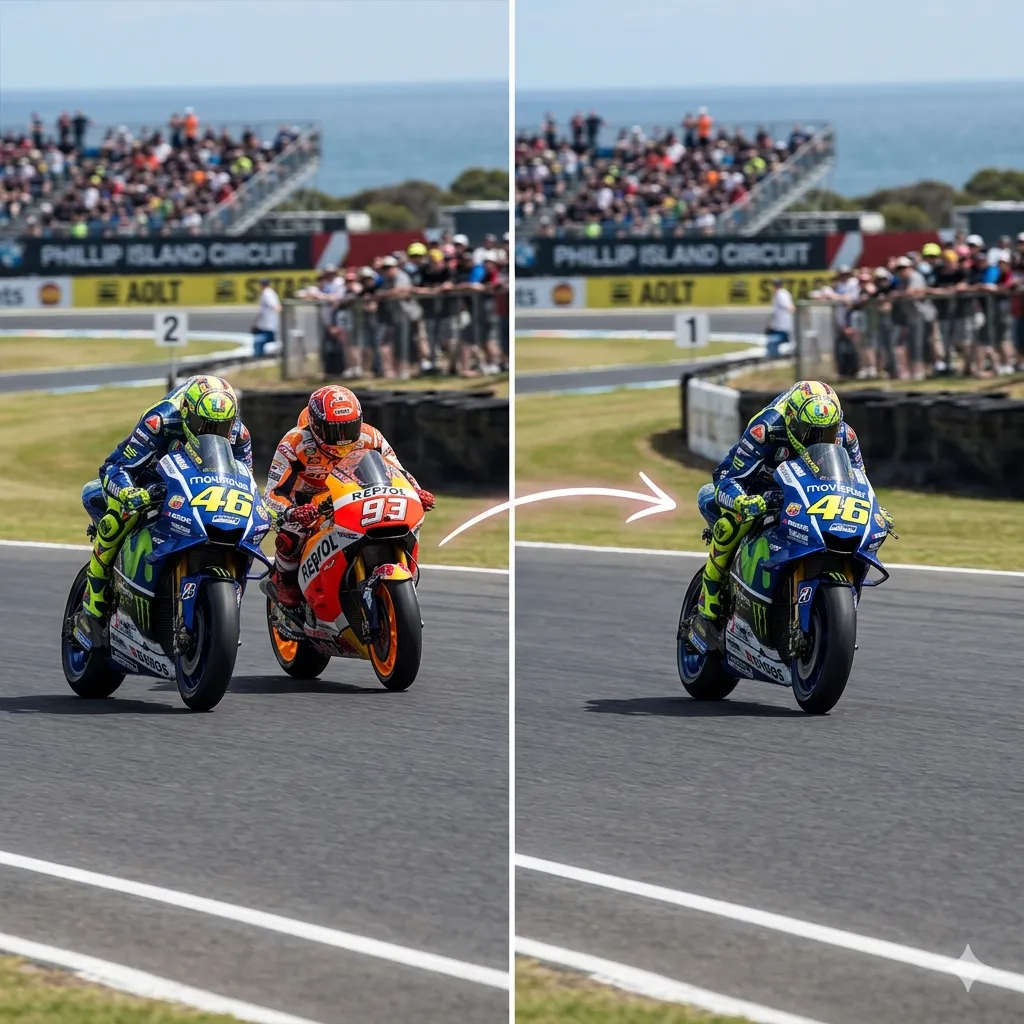
Image Enhancement Tools

Use this page as a practical guide to choose the right AI tool for image enhancement. Whether you need sharper resolution, watermark cleanup, subject outlining, screenshot translation, or manga text translation, these tools help you solve the actual bottleneck instead of guessing which editor to open first.

Image Enhancement Is More Than Making a Photo Sharper

Image enhancement tools solve several different problems. Sometimes the image is too soft and needs more detail. Sometimes distracting marks need to disappear. In other cases, the subject needs clearer separation from the background, or the text inside the image needs to become readable in another language. This hub helps you tell those jobs apart. If the first problem is weak clarity or low resolution, AI Image Upscaler is usually the right place to begin.

Task-based image improvement

Treat quality, cleanup, outlining, and translation as separate image enhancement tasks so the result matches what the image actually needs.

Better image usability

Use this page to choose the right tool when you want an image to look cleaner, read better, stand out more clearly, or become easier to reuse.

Image Enhancement Tools by Job

Browse the core tools in this cluster and jump straight to the one that fits your image problem.
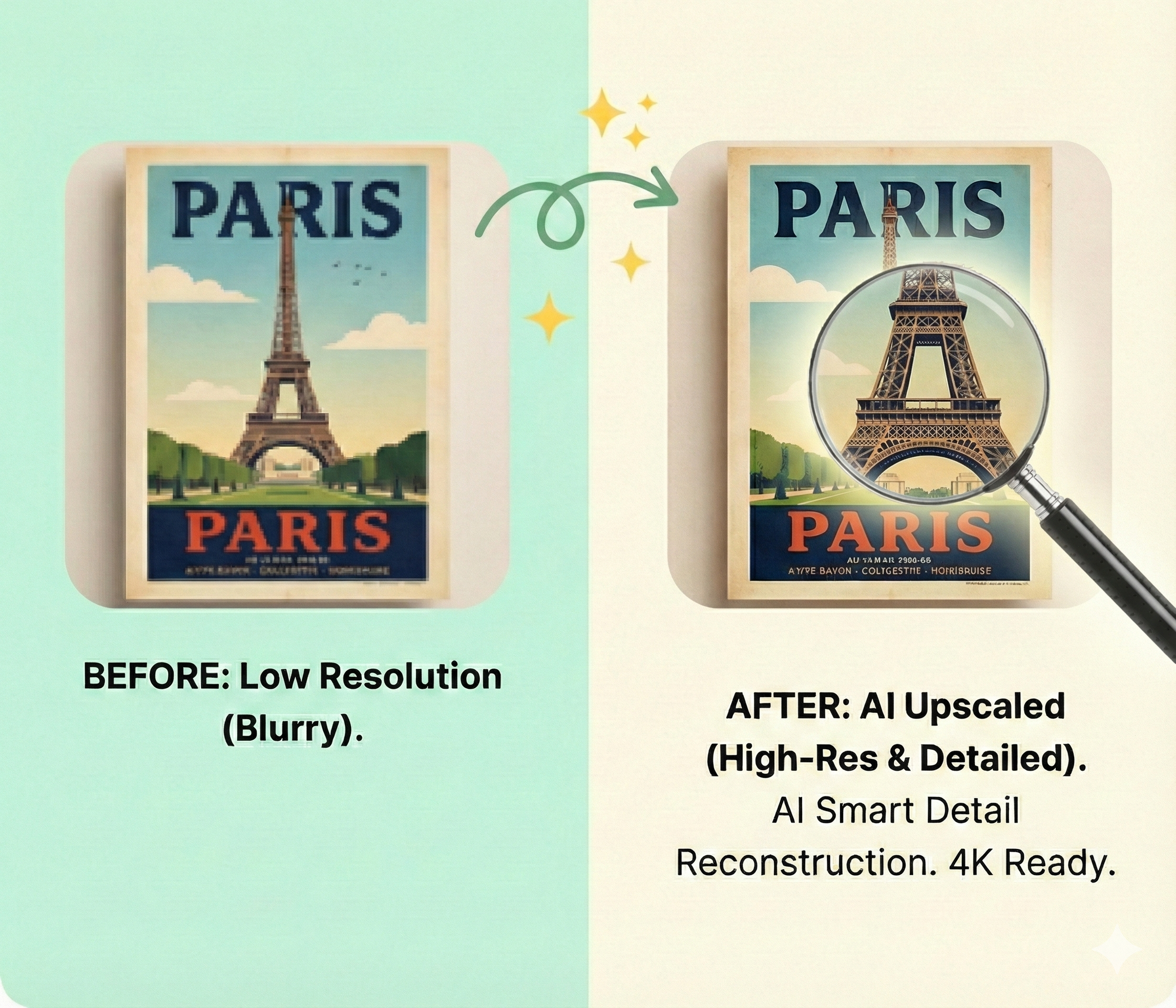
AI Image Upscaler preview

AI Image Upscaler

Increase image resolution and recover detail for cleaner exports and sharper displays.
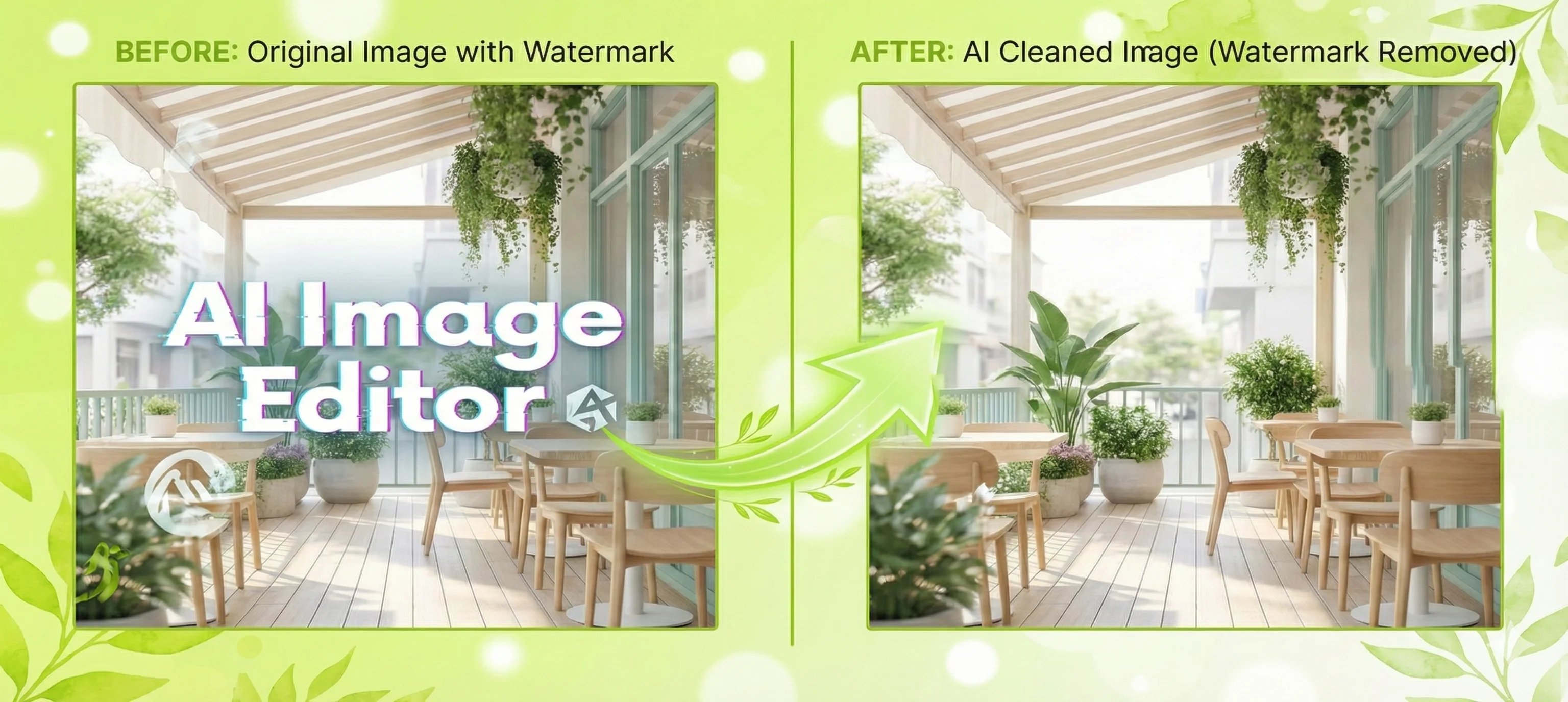
AI Watermark Remover preview

AI Watermark Remover

Remove logos, timestamps, and text marks while keeping backgrounds more natural.
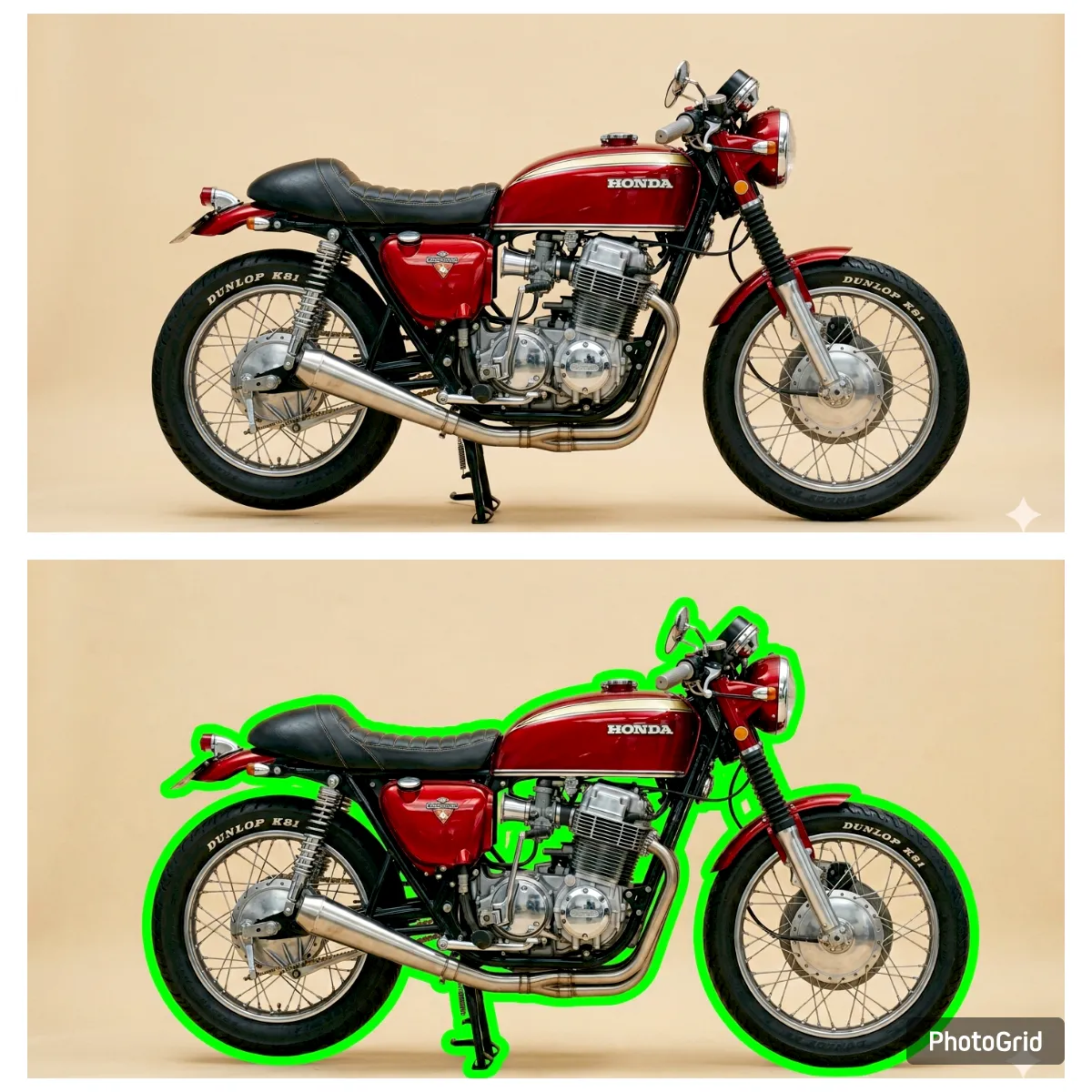
Add Outline to Image preview

Add Outline to Image

Add a clean subject outline to help portraits, products, and cutouts stand out.
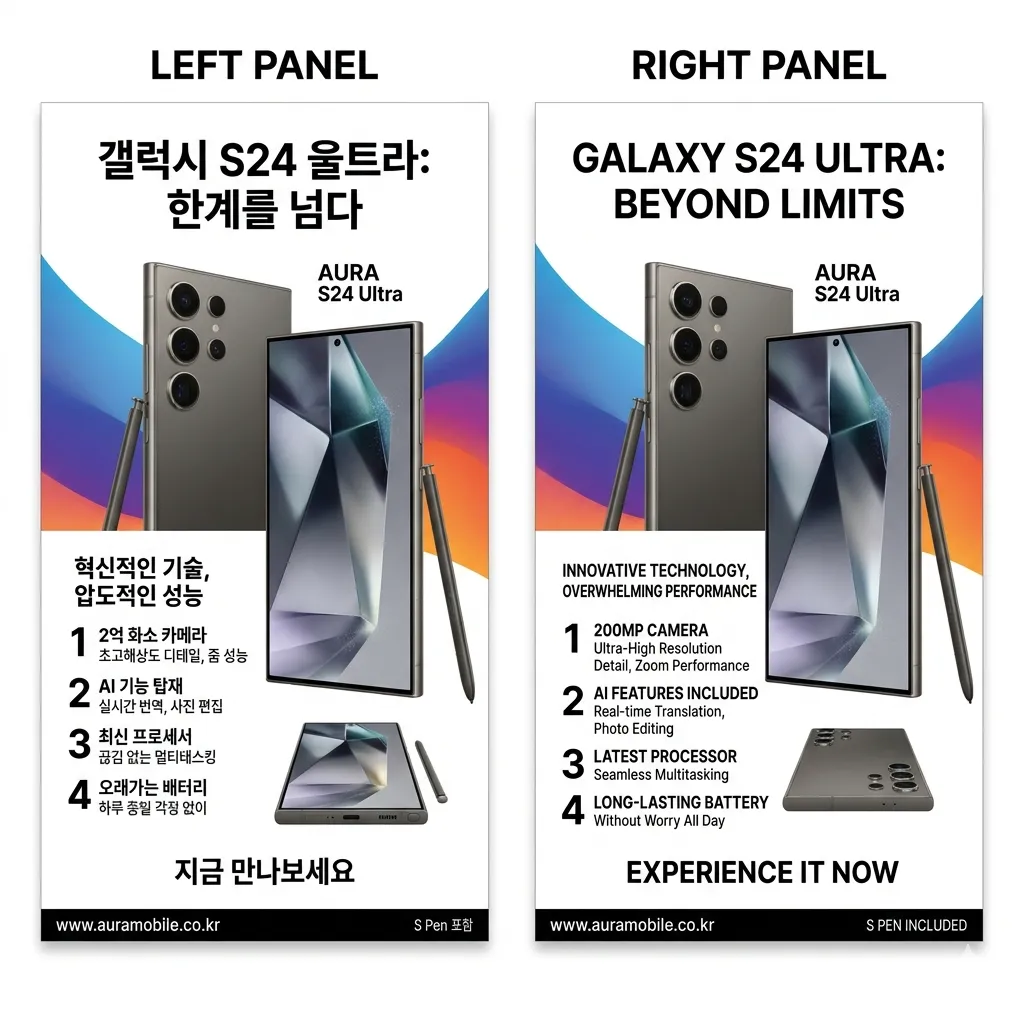
AI Image Translator preview

AI Image Translator

Translate text inside screenshots, posters, labels, and documents while preserving layout.
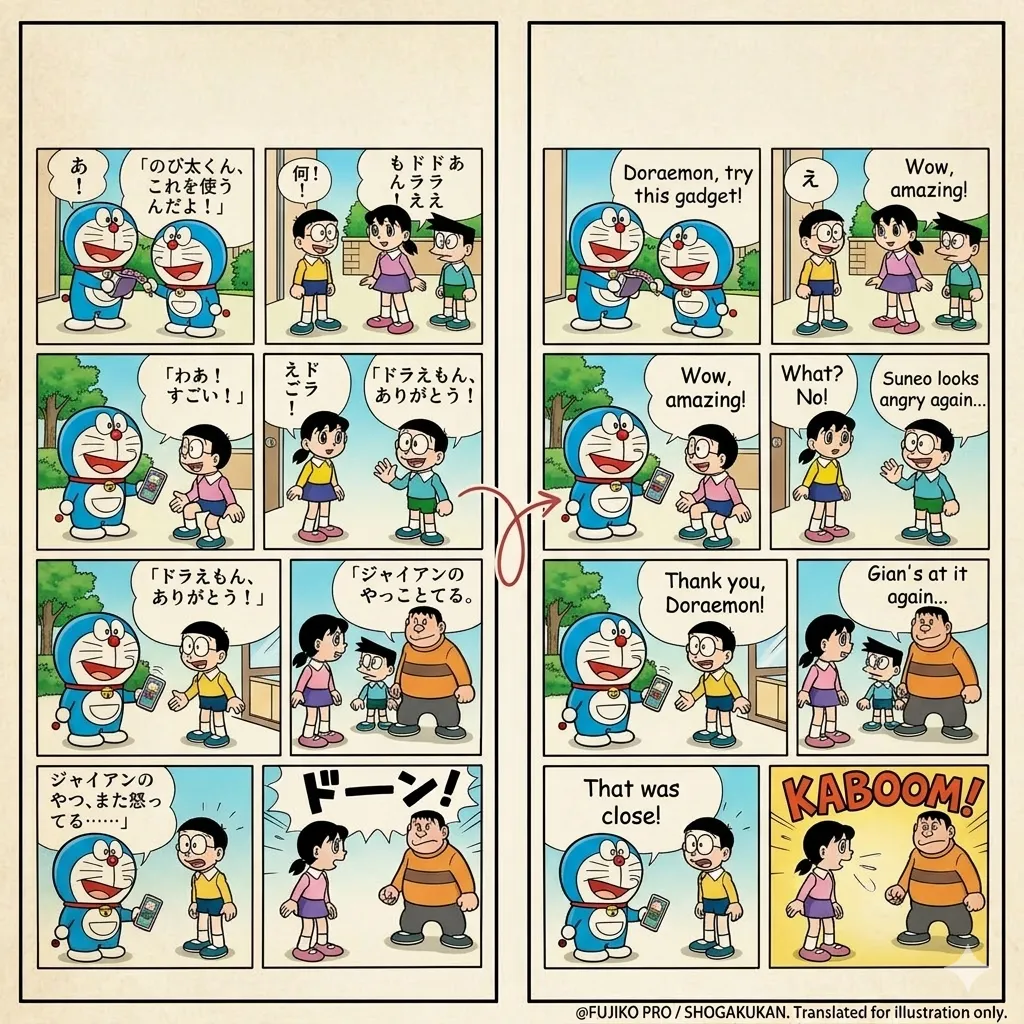
AI Manga Translator preview

AI Manga Translator

Translate manga pages while keeping speech bubbles, panel structure, and reading flow usable.

3 Steps

How to Choose the Right Image Enhancement Tool

Use a simple workflow: fix quality or remove distractions first, improve subject visibility next, and translate image content only when readability matters.
1

Fix quality or remove distractions first

If the image is soft, pixelated, or too small for reuse, start with AI Image Upscaler. If text marks or logos are blocking the image, move first to AI Watermark Remover.
2

Improve subject visibility next

When the image is readable but the main subject still blends into the background, Add Outline to Image is the next practical tool to open.
3

Translate image content when readability matters

If the image contains foreign-language text, use AI Image Translator for screenshots and posters, or switch to AI Manga Translator for comic and manga pages.

Why Image Enhancement Works Better as a Task-Based Workflow

Image enhancement is not a single step. Some images need clearer detail, some need distractions removed, and some need the subject or the text content to become easier to read. Splitting those jobs makes the result more practical and more natural. For example, AI Watermark Remover solves a cleanup problem, while Add Outline to Image helps with visibility and emphasis. Users get better results when they choose the tool that matches the real bottleneck instead of forcing every image through the same workflow. Once the image is cleaner and more usable, many users continue into Scene Design Tools for layout or composition work, or switch to Style Transform Tools when the next step is changing the look rather than the quality.

Clearer decisions, better output

When each tool solves one clear job, the final image is easier to publish, reuse, print, or share without unnecessary editing steps.

Less trial and error

You waste less time jumping between generic editors because the workflow already tells you whether the image needs cleanup, outlining, or translation next.

Common Image Enhancement Workflows

Users arrive from different search intents, but they usually want the same outcome: a cleaner, clearer, more usable image for publishing, sharing, or reading.

Product photos for listings

If the product is getting lost against the background, Add Outline to Image helps make the main subject stand out more clearly in listings and promos.

Social graphics and thumbnails

For sharper posts, banners, and thumbnail assets, AI Image Upscaler is often the most direct first step.

Archived or low-resolution images

When older files are too small or too soft for modern screens, AI Image Upscaler is the tool most people open first.

Screenshots with foreign-language text

For UI captures, posters, and screenshots that need readable translated text, AI Image Translator is the better fit.

Manga pages and comic panels

When the image includes speech bubbles and panel flow, AI Manga Translator is more suitable than a general image translator.

Images with distracting text or watermarks

If the main issue is a logo, timestamp, or overlay blocking the content, AI Watermark Remover is the most relevant cleanup tool.

Trusted Tools for Better Image Quality

Users rely on this image enhancement workflow to clean images up, improve clarity, and make visual content easier to reuse.

120K+ Images Enhanced

120K+

Images Enhanced

60K+ Users Helped

60K+

Users Helped

4.8/5 Average Rating

4.8/5

Average Rating

Frequently Asked Questions

Common questions about choosing the right tool for image quality improvement, cleanup, outlining, and translation.


If your image is already cleaned up and you want to continue editing, the next useful tools to open are Image to Sketch and AI Image Combiner.

Ready to Improve Your Images?

Start with the issue that affects the image most. For many users, that means improving clarity first or removing a distracting watermark before doing anything else.